Framewrk watches PhotoPrism, picks the photos that match your rules, and
sends them to your Aura and Nixplay frames at the size and shape each
screen wants. It remembers what it has already sent, so nothing goes
twice — and it takes photos back off when they stop qualifying.
One container. No config file. Everything is set up in the console.
Waiting for the next run
What it does
Three things, properly.
Sends what fits
A portrait frame gets portrait photos. A 1280px screen gets a 1280px
file. You set the rule once per frame, or let the whole house share one.
Never sends twice
Every photo is tracked against the frame it went to, by ID. Rename a
frame in the Aura or Nixplay app and Framewrk just adopts the new name.
Takes them back off
Narrow a frame to one album and the rest come down on the next run.
The console tells you what will happen before it happens.
The console
Set up in a browser, not a config file.
Framewrk has no configuration file and nothing to set before it starts.
Everything — PhotoPrism, your frame accounts, which photos qualify, what
each screen gets — is here.
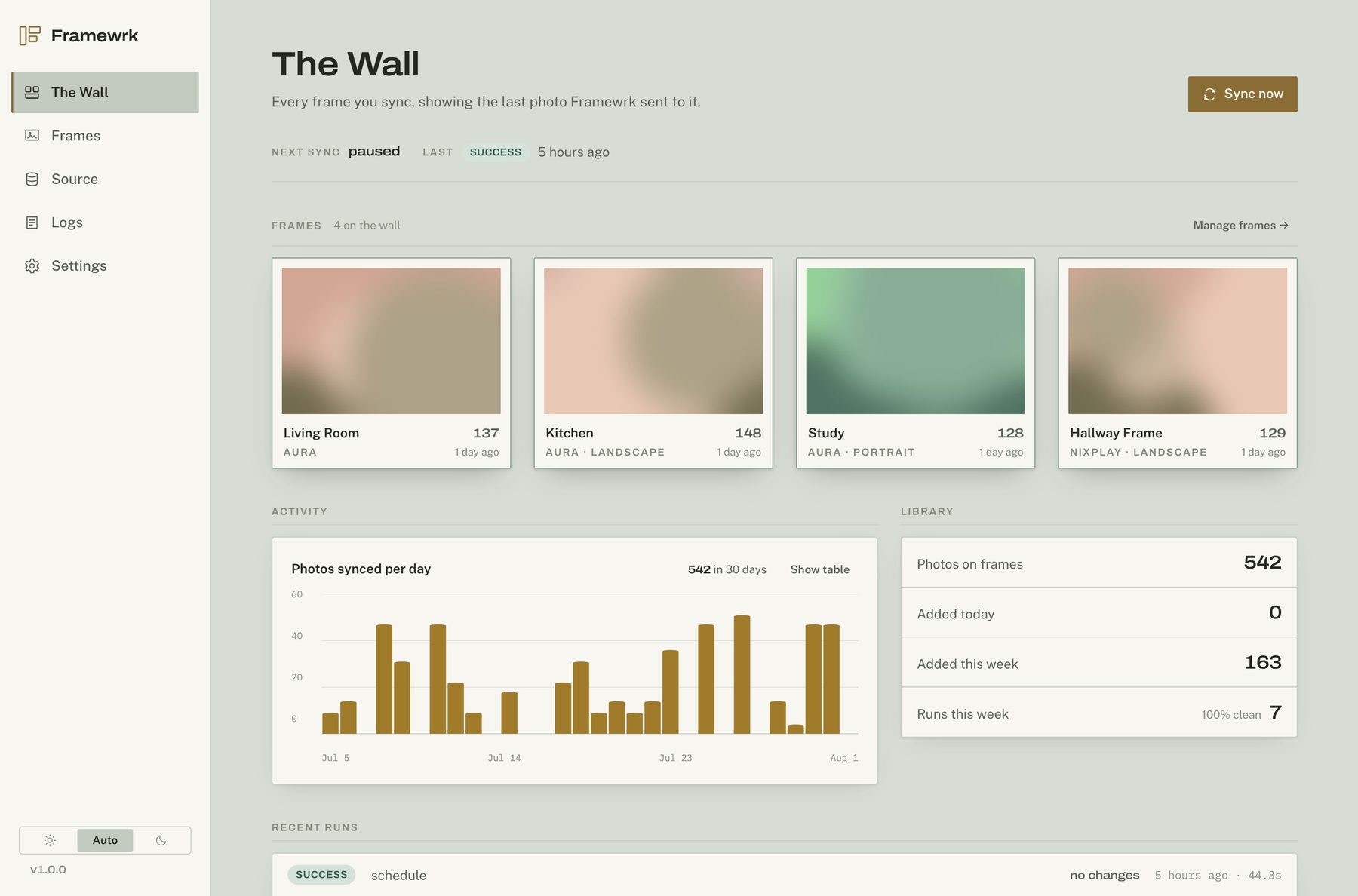
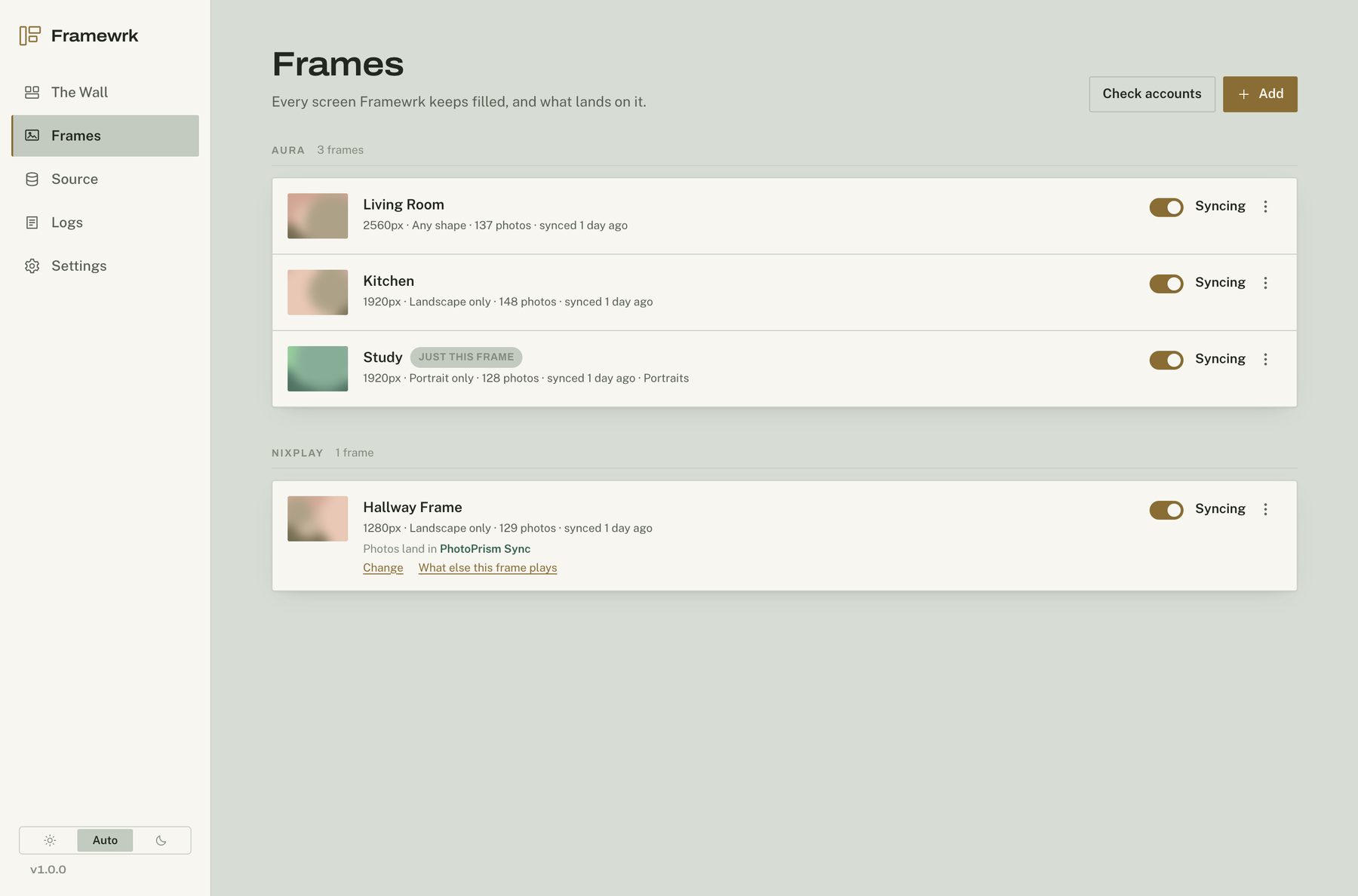
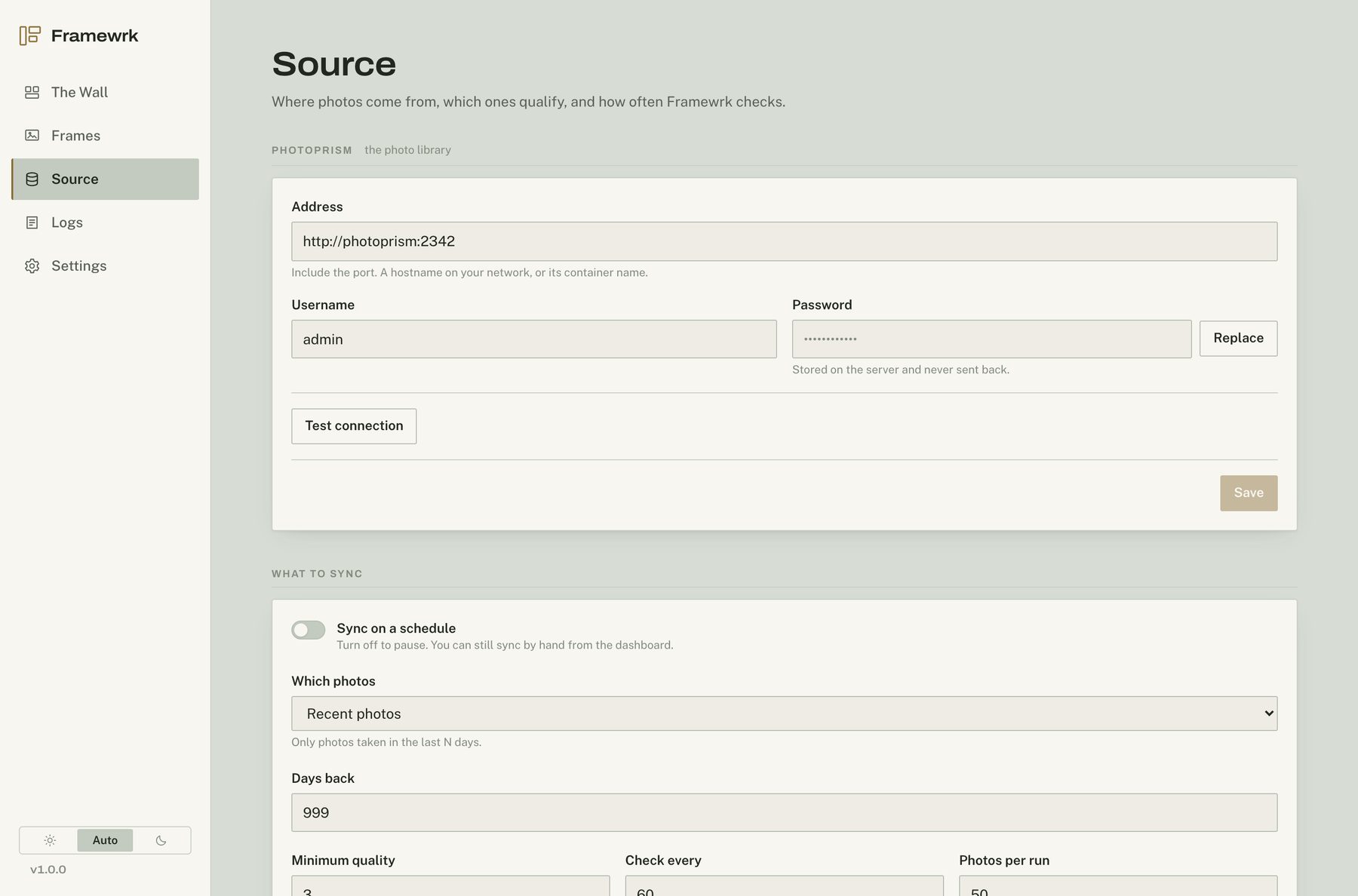
The wall. Every frame, the photo currently on it, and what has been sent lately.Frames. One card per screen, across both services.Source. Where photos come from and which ones qualify.
Get started
Running in about a minute.
There is nothing to configure first — no config file, no environment to
set. One container, one folder, then everything else happens in the
console.
With Aura, a frame is a frame and photos go straight to it. Nixplay does
not work that way: you upload into an album, and an album is played by
zero or more frames. Most tools hide that and get it wrong. Framewrk shows
you frames, and says which album feeds each one.
PhotoPrism→album→Hallway Frame+Landing Frame
So you can change where a frame's photos land without re-uploading a
thing, see what else a frame is playing, and get told plainly when an
album is on no frame at all — because nothing you sync into it will ever
reach a screen.